




Fragments in the current folder of the IMC Main Tree can be provisionally joined (before ligation) and drawn as a New PlasmidMap.
Drawing a plasmid map from multiple provisionally joined fragments in the current folder
- Select multiple fragments in the current folder of the IMC Main Tree.
- Open the β:CC: ConstructCanvas tab pane.
- If the Refresh from Selection button is blinking yellow, click it.
- This synchronizes the contents of the Main Tree and the Feature Keys table.
- The synchronized Feature Keys table shows, for each Feature Key present across all the selected fragments, the items needed to draw it.
Items in the Feature Keys table
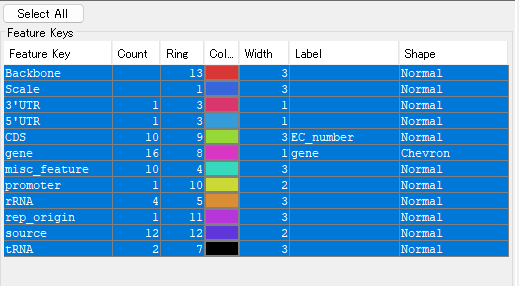
- Feature Key: the name of the Feature Key
- Count: the total number of that Feature Key (the total number of Features belonging to that same Feature Key across all the fragments)
- Ring: the position at which that Feature Key is drawn on the New PlasmidMap (its order from the center of the concentric circles)
- Color: a color box showing the color used to display that Feature Key on the New PlasmidMap
- Width: the width (in pixels) of the shape used to display that Feature Key on the New PlasmidMap
- Label: the Qualifier used as the source for the label attached to Features belonging to that Feature Key (a pull-down menu)
- Shape: the shape used to draw that Feature Key (currently a choice of 3 shapes from a pull-down menu)
Operation buttons for the Feature Keys table
- Select All button: selects every row in the Feature Keys table.
- To select an individual row, click it.
- To select multiple contiguous rows, click the first row, then Shift+click the last row.
- To select multiple non-contiguous rows, Ctrl+click each row.
As soon as rows are selected, the New PlasmidMap for the selected Feature Keys is drawn.
Operating the Feature Keys table
- Changing Ring: change the Ring position of the Feature Key you want to change by typing a positive integer directly into the field.
- Changing Color: click the color box. The "Choose color for (Feature Key)" dialog appears; set any color and click OK.
- Changing Width: change the shape width of the Feature Key you want to change by typing a positive integer directly into the field.
- Label: select the Qualifier to use for the Feature Key. A pull-down menu appears; choose the Qualifier you want to use for the label.
- Shape: choose the shape used to draw the Feature on the plasmid map from the pull-down menu. Currently you can choose from 3 shapes: Normal, Narrow, and Chevron.