You can now choose to show or hide each button individually, and change its display order within its group.
After adopting the Top/Bottom/Left/Right layout, users were no longer able to show or hide individual Tool buttons.
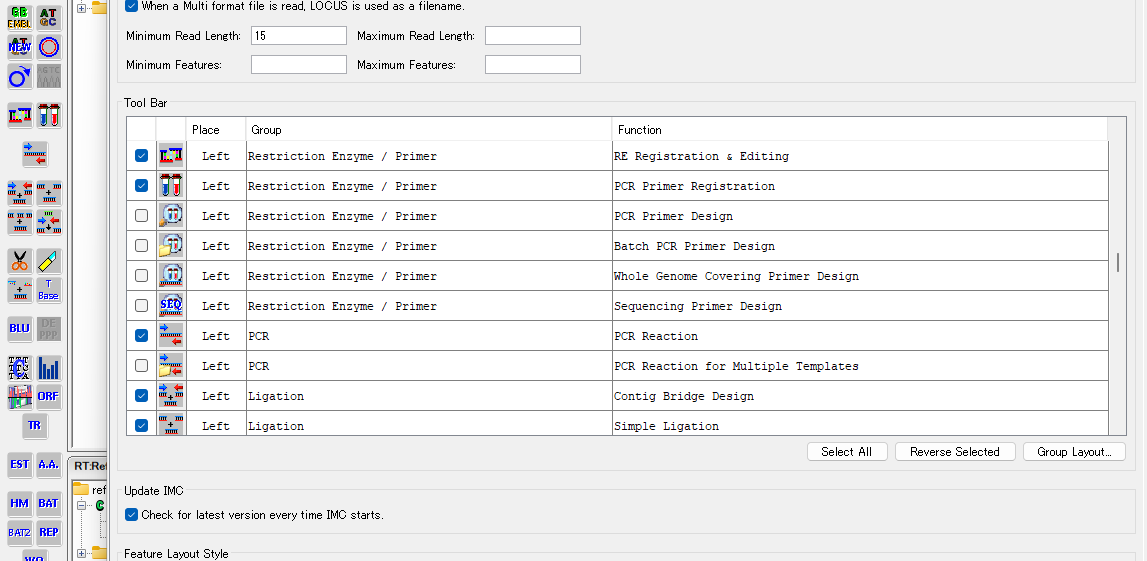
To toggle a button's visibility, go to MENU bar > SETTINGS > Feature Setting... > Setup Tab Pane > Tool Bar Table, and check or uncheck its checkbox (checked = shown, unchecked = hidden).
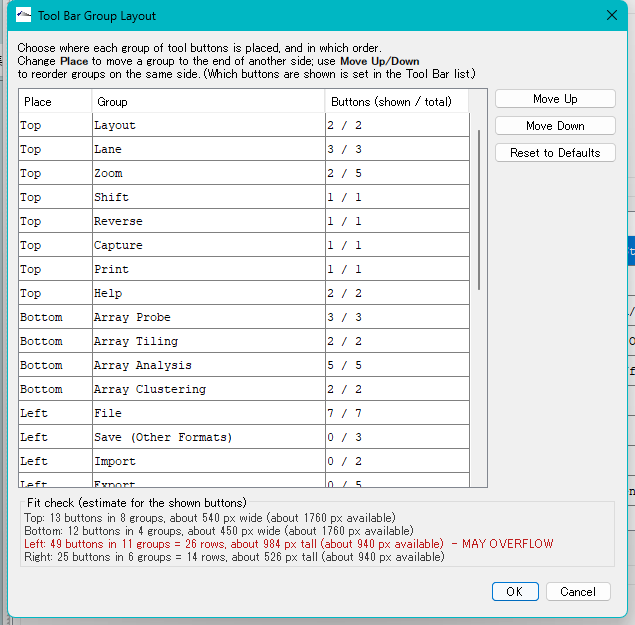
To change a Tool button's display order within its group, use the newly implemented "Group Layout" feature.
The Group Layout feature is operated from the "Tool Bar Group Layout" dialog, opened by clicking the new "Group Layout..." button added below the Tool Bar Table, in MENU bar > SETTINGS > Feature Setting... > Setup Tab Pane.
Functions and operation of the Tool Bar Group Layout dialog
The Tool Bar Group Layout dialog contains the Tool Bar Group Layout table, Tool move buttons (Move Up, Move Down), a Reset to Defaults button, an OK button, and a Cancel button.
Select a Tool button shown in the table, then use Move Up or Move Down to change its display order.
Clicking Reset to Defaults restores the default order.